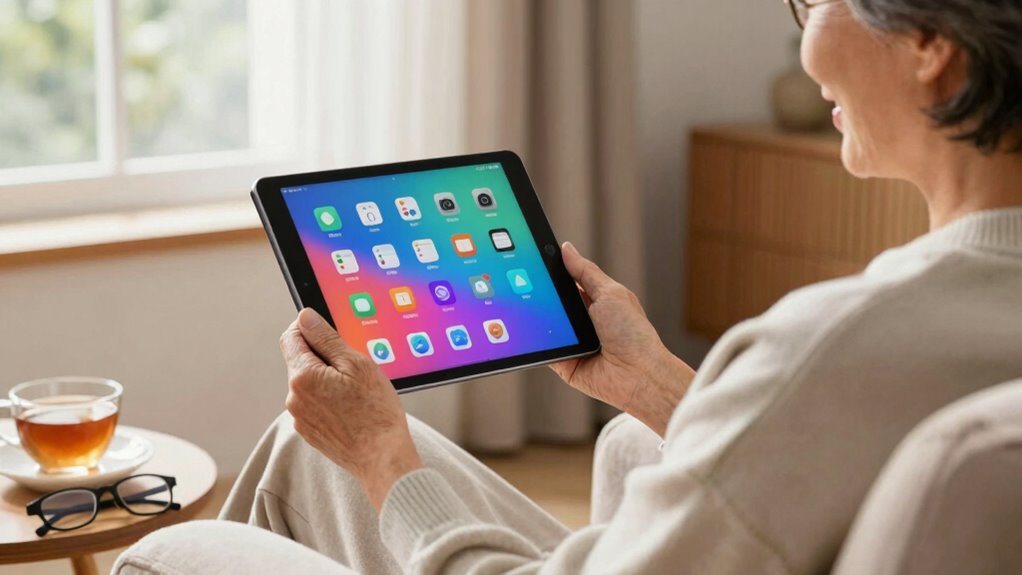

A good tablet setup for older adults prioritizes simplicity, with large, clear icons and an intuitive interface that’s easy to navigate. Adjust brightness and enable accessibility features to reduce strain and improve visibility. Teach basic functions slowly and use voice commands for hands-free control. Create a familiar environment where routine use builds confidence. If you keep exploring, you’ll discover more tips to make device use even smoother and more enjoyable.

Get health and wellness essentials delivered free — and shop member deals
- Fast, free delivery on millions of items
- Access to Prime Big Deal Days deals on October 6–7
- Prime Video, Amazon Music and more included
Key Takeaways
- Choose a device with a simple, intuitive interface and large, clear icons for easy navigation.
- Introduce basic functions slowly, focusing on familiar tasks like calling and messaging to build confidence.
- Enable and teach voice command features to facilitate hands-free operation and reduce touch difficulties.
- Adjust screen brightness and accessibility settings to enhance visibility and reduce eye strain.
- Incorporate routine use within a supportive environment to foster familiarity, independence, and positive experiences.
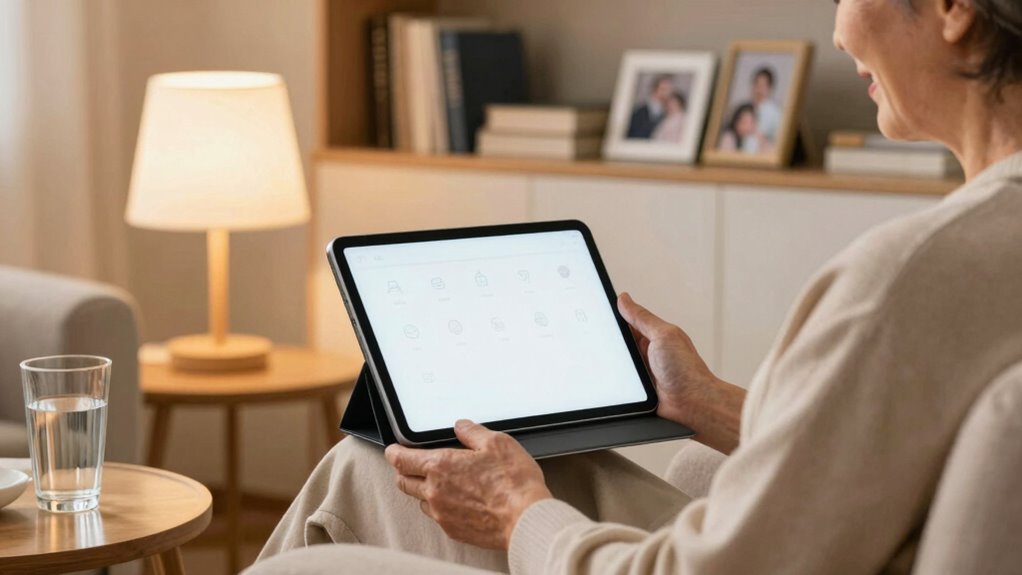
Setting up a tablet for older adults can be a simple process if you approach it with patience and understanding. The goal is to create an environment that feels intuitive and comfortable, making technology accessible rather than intimidating. Start by choosing a tablet with a user-friendly interface and large, clear icons. This minimizes frustration and helps your loved one navigate their device easily. Once powered on, walk them through the basic functions, keeping your instructions simple and slow. Don’t rush; allow them to get comfortable with the device’s layout before moving on to more advanced features.
Start with a simple, user-friendly tablet and take your time introducing basic functions patiently.
One of the most helpful features you can set up is voice command. Voice commands allow older adults to operate their tablets hands-free, reducing the need for precise touch gestures. Enable voice assistant features like Siri or Google Assistant, and teach them how to activate it with a simple voice prompt. This is especially useful for making calls, sending messages, or opening apps — tasks that might otherwise seem complicated. Practicing these commands together helps build confidence, and knowing they can rely on voice command gives them a sense of independence.
Adjust the screen brightness to make the tablet easier to see in different lighting conditions. Brightness is crucial for reducing eye strain and improving visibility, particularly if your loved one has vision impairments. Set the brightness to a comfortable level and show them how to adjust it easily. If the tablet has adaptive brightness settings, enable them so the device can automatically adjust based on lighting changes. Making these adjustments ensures that the screen isn’t too dim or too glaring, making it easier for them to read, browse, or watch videos for longer periods without discomfort. Additionally, understanding visual accessibility features can further enhance their experience by customizing display options to suit their needs. Exploring device customization options can also help tailor the tablet to their preferences and improve overall usability. Incorporating features like natural filtration systems or selecting native apps can support sustainable practices and make their experience even more tailored to their needs.
Finally, spend time introducing these features as a routine. Repetition helps them remember how to use voice commands or adjust brightness without needing constant assistance. Keep the environment friendly and encouraging, so they associate their tablet with positive experiences. Establishing a consistent governance framework can also help in maintaining security and privacy, ensuring they feel safe while using the device. With patience and proper customization, you’re helping them enjoy the benefits of technology comfortably and confidently.
As an affiliate, we earn on qualifying purchases.
Frequently Asked Questions
How Can I Protect My Tablet From Accidental Drops?
To protect your tablet from accidental drops, start by installing a high-quality screen protector to guard the display. Pair it with a sturdy protective case that absorbs shocks and provides a secure grip. Always handle your tablet with dry hands and avoid placing it near edges or unstable surfaces. Using these accessories and precautions makes it easier to prevent damage and prolong your device’s lifespan.
What Are the Best Accessories for Older Adults?
Think of accessories as the perfect toolkit for your tablet. You’ll want a sturdy stylus pen that makes navigation easier and precise, especially if your fingers aren’t as nimble. Screen cleaners are essential to keep the display clear and readable. These accessories help you enjoy your tablet more comfortably and efficiently, making technology feel less like a puzzle and more like a helpful companion in your daily life.
How Do I Troubleshoot Common Tablet Issues?
To troubleshoot common tablet issues, start by ensuring your digital literacy is up to date—review user manuals or online guides. Restart the device to fix minor glitches, and check for software updates. If problems persist, reset settings or do a factory reset. Providing user training can prevent issues and help you recognize when to seek professional help. Regular maintenance and staying informed keep your tablet running smoothly.
Can I Customize Tablet Settings for Better Accessibility?
Yes, you can customize tablet settings for better accessibility. You should increase the font size so text is easier to read, and adjust the screen brightness to reduce eye strain. Many tablets also offer options like voice commands, larger icons, or high-contrast displays. These adjustments make moving through your tablet simpler and more comfortable, helping you stay connected and engaged without frustration.
How Do I Share My Tablet With Family Members?
Think of your tablet as a family treasure chest—you want to share it, but also keep some secrets. To share with family members, set up user profiles or guest modes, so everyone can enjoy the device without risking privacy. Use family controls to manage what they access, ensuring sharing is safe and respectful. This way, you maintain sharing privacy while nurturing family connections and trust.
large icon tablet for older adults
As an affiliate, we earn on qualifying purchases.
As an affiliate, we earn on qualifying purchases.
Conclusion
Creating a user-friendly tablet setup for older adults can greatly enhance their digital experience. Remember, over 70% of seniors who use tablets report improved communication and access to information. By customizing settings, choosing simple apps, and providing clear instructions, you make technology approachable and enjoyable. A well-designed setup not only boosts confidence but also promotes independence, helping older adults stay connected and engaged in today’s digital world.
voice assistant tablet for seniors
As an affiliate, we earn on qualifying purchases.
As an affiliate, we earn on qualifying purchases.
As an affiliate, we earn on qualifying purchases.
Fall Picks
fall essentials
As an affiliate, we earn on qualifying purchases.