
To back up your caregiving documents securely, digitize important files like medical records, legal papers, and care plans using a scanner or smartphone app. Store these files in a cloud service like Google Drive or Dropbox, with strong passwords and two-factor authentication for protection. Keep physical backups on encrypted external drives stored safely. Regularly verify backups and update permissions to prevent data loss. If you’d like detailed tips, keep exploring ways to safeguard your essential information effectively.
Key Takeaways
- Digitize all caregiving documents using scanners or smartphone apps, and organize them in clearly labeled folders.
- Use secure cloud storage services like Google Drive, Dropbox, or OneDrive for easy multi-device access.
- Protect digital files with strong passwords, two-factor authentication, and data encryption for security.
- Create encrypted physical backups on external drives stored in secure, accessible locations.
- Regularly verify and update backups, review access permissions, and remove unnecessary sharing to prevent data loss.

Backing up your important caregiving documents is essential to guarantee they’re always accessible when needed, especially during emergencies. When you’re responsible for managing critical information—medical histories, legal papers, care plans—having reliable backups ensures you’re prepared for any situation. The key is to implement a system that prioritizes digital security and access management. Digital security protects your sensitive data from unauthorized access or cyber threats, while access management controls who can view or modify your documents, maintaining privacy and integrity.
Ensuring digital security and proper access management keeps your caregiving documents safe, private, and always ready in emergencies.
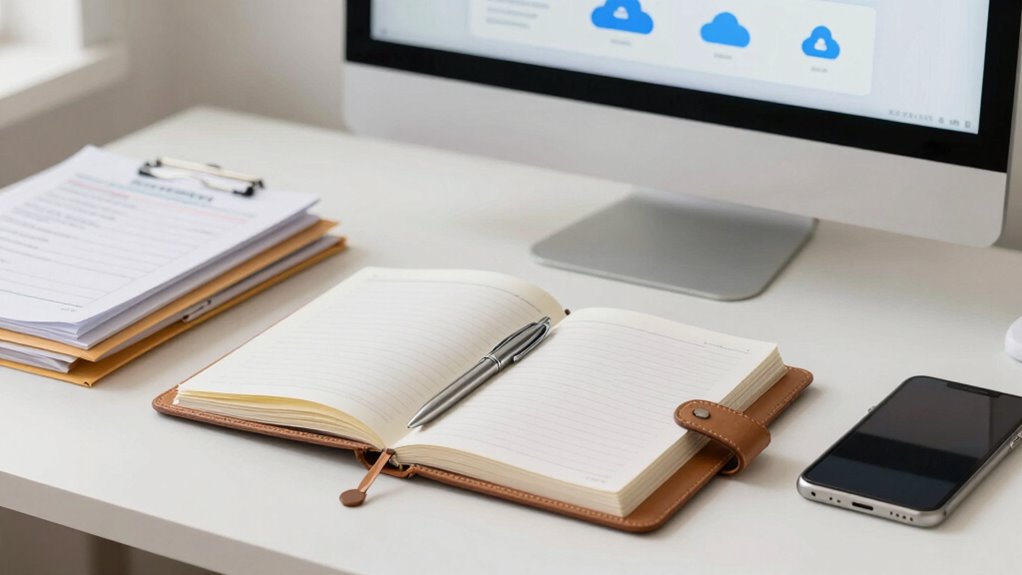
Start by digitizing all essential paperwork. Use a scanner or smartphone app to create clear, readable copies of legal documents, medical records, insurance policies, power of attorney forms, and care instructions. Once digitized, organize these files into a dedicated folder on your device or cloud storage. Cloud storage services like Google Drive, Dropbox, or OneDrive are popular choices because they offer easy access from multiple devices and locations. Ensure your accounts are protected with strong, unique passwords and enable two-factor authentication to add an extra layer of digital security.
When setting up your cloud storage, pay close attention to access management. Limit permissions to only trusted individuals—family members, caregivers, or legal representatives—by sharing files securely. Many services allow you to set permissions, so you can decide whether someone can view or edit documents. Regularly review who has access, especially if relationships change or your circumstances evolve, to prevent unauthorized viewing. Incorporating digital security measures can further safeguard your information from cyber threats. Additionally, consider creating regular backups to prevent data loss in case of technical issues or accidental deletion. Implementing data encryption adds an extra layer of protection, ensuring your sensitive information remains secure even if stored on external devices.
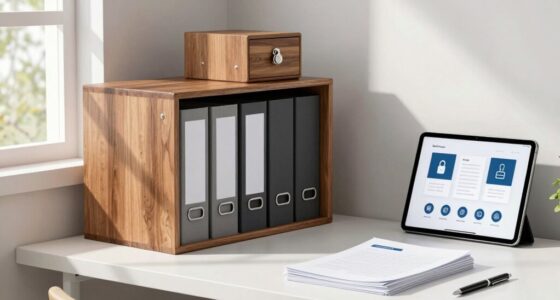
In addition to cloud backups, consider encrypted external drives or secure USB sticks for physical backups. Keep these devices in a safe, easily accessible location, such as a locked drawer or safe deposit box. Encrypting your external drives adds an extra layer of security, ensuring that even if the device is lost or stolen, your sensitive information remains protected. Incorporating traditional storage methods aligns with traditional Indonesian home decor principles, which emphasize natural materials and harmony.
Develop a routine to update and verify your backups periodically. Check that files are intact, accessible, and properly organized. Make sure your access management settings remain current, removing permissions for individuals who no longer need access. By maintaining this discipline, you prevent data loss and ensure your caregiving documents are always ready when you need them most.
document scanner for caregiving records
As an affiliate, we earn on qualifying purchases.
As an affiliate, we earn on qualifying purchases.
Frequently Asked Questions
How Often Should I Update My Backup Copies?
You should update your backup copies regularly, ideally every month or after any major change to your caregiving documents. Use backup scheduling to set reminders, ensuring your data stays current. Always encrypt your documents before backing them up, which keeps sensitive information safe from unauthorized access. Regular updates and encryption help you stay prepared for emergencies and protect your essential caregiving information effectively.
What Digital Formats Are Best for Document Backups?
You should store your caregiving documents in versatile digital formats like PDF and DOCX, which preserve formatting and are widely compatible. Use file encryption to protect sensitive information, and save copies in secure cloud storage for easy access and backup. Cloud storage also offers automatic updates, ensuring your files stay current. Combining encrypted files with reliable cloud options keeps your documents safe, accessible, and protected from unauthorized access.
How Do I Securely Share Backup Files With Family Members?
Sharing backup files securely is like passing a secret handshake. You should set up shared access through a trusted cloud service with strong permissions, ensuring only family members can view or edit. Use encrypted transfer methods, such as secure file-sharing platforms or end-to-end encryption, to protect sensitive information. Always verify recipients’ access and avoid sending unencrypted files via email, keeping your caregiving documents safe and sound.
What Are the Best Storage Locations for Physical Copies?
For physical copies, choose storage locations that prioritize safety and organization. Use a fireproof, waterproof safe to protect documents from damage and theft. Keep copies in a secure, easily accessible spot, like a locked cabinet or safe deposit box. Regularly review and update your files, ensuring they’re well-organized with clear labels. This approach helps maintain storage safety and keeps your caregiving documents easy to find when needed.
How Can I Recover Documents if My Digital Backup Is Corrupted?
Think of your digital backup as a treasure chest; if it gets damaged, you still have hidden vaults. To recover documents, you should check your cloud security and guarantee data encryption was active, protecting your files from corruption. Using multiple cloud services or offline copies creates redundancies, like secret vaults. This way, even if one backup fails, your important caregiving documents remain safe and accessible.
As an affiliate, we earn on qualifying purchases.
Conclusion
By backing up your caregiving documents, you’re not just safeguarding essential information—you’re creating a safety net that, in unexpected moments, might be the very thing to keep everything running smoothly. Sometimes, it’s the small, overlooked steps that unexpectedly save the day. When you think you’ve accounted for every detail, that backup copy might be the coincidence that turns a stressful situation into a manageable one, reminding you that preparedness can truly be a quiet act of hope.
cloud storage service subscription
As an affiliate, we earn on qualifying purchases.
As an affiliate, we earn on qualifying purchases.
As an affiliate, we earn on qualifying purchases.